
General News
How to Set Up a Fingerprint Scanner for SHA in Kenya (Step-by-Step Guide)
How to Set Up a Fingerprint Scanner for SHA in Kenya (Step-by-Step Guide)
Kenya’s Social Health Authority (SHA) has introduced biometric fingerprint verification to replace OTP-based systems. This move is designed to improve patient identification, eliminate fraud, and streamline healthcare services across the country.
Fingerprint scanners are now used in public and private health facilities through the Practice 360 app, enabling real-time verification of beneficiaries before services are provided.
In this guide, we’ll walk you through how to set up a fingerprint scanner for SHA in Kenya, recommended devices, and how to troubleshoot common issues.
Understanding the SHA Biometric Rollout in Kenya
The SHA biometric system is being implemented across healthcare facilities in phases, starting with Level 4, 5, and 6 hospitals and expanding to smaller facilities nationwide.
- Objective: Prevent fraud and ensure accurate patient identification
- Verification Method: Fingerprint scanning instead of OTP
- Software Used: Practice 360 app for verification and approval
- Deployment: Ongoing across public and private health facilities
This means having a reliable fingerprint scanner is now essential for compliance.
What You Need Before Setup
- A SHA-compatible fingerprint scanner (500 DPI or higher)
- A computer or system (Windows, Android, or Linux)
- Stable internet connection
- Access to Practice 360 or SHA system
Browse available options here:
SHA biometric fingerprint scanners in Kenya
Top SHA-Approved Fingerprint Scanners in Kenya
- ZKTeco ZK9500 – Affordable and reliable, works well with all fingerprint types
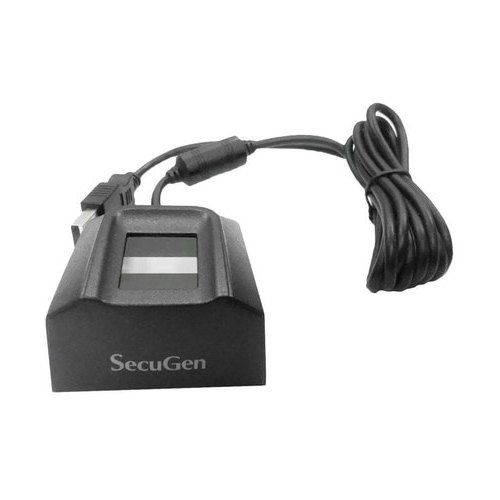
- SecuGen Hamster Pro 20 – FBI-certified, durable, ideal for hospitals
- SecuGen Hamster Plus – Best for difficult fingerprints and heavy usage
- DigitalPersona 4500 – Fast and efficient for high-traffic environments
Step-by-Step SHA Fingerprint Scanner Setup
Step 1: Connect the Scanner
Plug the fingerprint scanner into your computer using a USB port. Most devices are plug-and-play.
Step 2: Install Drivers
Install drivers if required. Some devices install automatically, while others need manual installation.
Step 3: Install Practice 360 or SHA Software
Download and install the required SHA verification system such as Practice 360.
Step 4: Register Your Facility
Log in and complete verification using your credentials. This may require OTP for initial setup.
Step 5: Start Verification
Place a patient’s finger on the scanner and verify identity in real time.
Setup time: Typically under 10 minutes.
How Patients Register for SHA
Patients can register their biometric health ID through:
- The official SHA online portal
- Mobile USSD code *147#
- Registration at approved health facilities
Common Challenges with SHA Fingerprint Systems
During rollout, some facilities have experienced:
- Delays in patient verification
- Scanner compatibility issues
- System downtime in high-traffic hospitals
Using a reliable fingerprint scanner significantly reduces these issues.
Troubleshooting Fingerprint Scanner Issues
1. Scanner Not Working
- Reconnect the device to another USB port
- Restart your computer
- Clean the scanner surface
2. Device Not Detected
- Reinstall drivers via Device Manager
- Use the correct drivers (WBF drivers for Windows)
- Avoid using USB hubs
3. Fingerprint Not Capturing
- Ensure the finger is clean and properly placed
- Use scanners like SecuGen for difficult fingerprints
4. Advanced Troubleshooting (SecuGen Devices)
- Use SecuGen diagnostic tools to test the device
- Disable conflicting USB devices
- Restart system services if needed
Best Practices for Reliable Performance
- Keep the scanner clean and dust-free
- Train staff on correct usage
- Use high-quality scanners for better accuracy
- Ensure stable internet connectivity
Where to Buy SHA Fingerprint Scanners in Kenya
Buy genuine fingerprint scanners from Rapidtech Networks Limited, a trusted supplier of biometric and ICT solutions in Kenya.
We provide original devices, expert support, and fast delivery across Kenya including Nairobi, Mombasa, Kisumu, Nakuru, Eldoret, Thika, Nyeri, Machakos, Meru, and other towns.
Browse available scanners here:
SHA biometric fingerprint scanners in Kenya
Frequently Asked Questions (FAQs)
Why did SHA replace OTP with fingerprint verification?
To eliminate fraud, improve accuracy, and ensure secure patient identification.
What app is used for SHA biometric verification?
The Practice 360 app is commonly used for biometric verification and approvals.
Which fingerprint scanners are approved for SHA?
ZKTeco ZK9500, SecuGen Hamster Plus, SecuGen Hamster Pro 20, and DigitalPersona 4500 are widely used in Kenya.
How long does setup take?
Most fingerprint scanners can be installed and ready in under 10 minutes.
What should I do if my scanner is not working?
Check connections, reinstall drivers, clean the sensor, and restart your system.
Where can I buy SHA fingerprint scanners in Kenya?
You can purchase from Rapidtech Networks Limited with fast nationwide delivery and expert support.
