
Accessories
How to Connect Two Monitors to a Laptop Using a UGREEN Docking Station
Nov
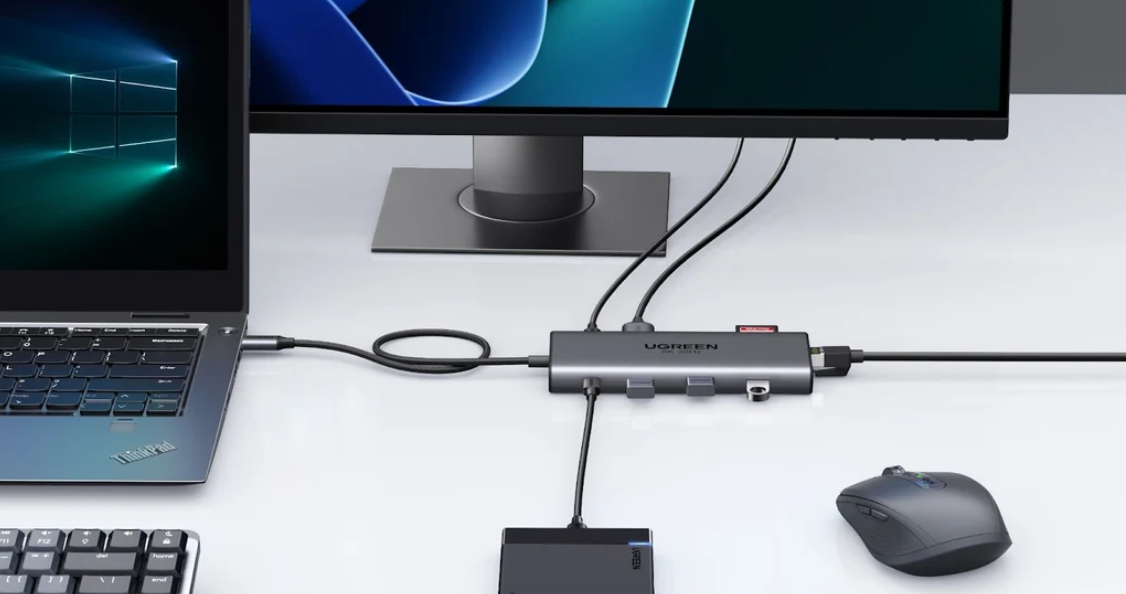
Learning how to connect two monitors to a laptop can make everyday work more efficient. With a compatible UGREEN docking station, you can extend your laptop display across two external monitors for spreadsheets, presentations, video meetings, graphic design and multitasking.
This step-by-step guide explains how to set up dual monitors using USB-C, Thunderbolt, HDMI or DisplayPort connections. It also covers Windows 10 and Windows 11 display settings, MacBook compatibility, DisplayLink software and common problems when a second monitor is not detected.
Before You Start
Your laptop and docking station must support the required external display configuration. Having two HDMI or DisplayPort connectors does not automatically guarantee two independent extended monitors. Check the laptop’s video capabilities, the dock’s supported display modes and operating system compatibility.
What Do You Need to Connect Two Monitors to a Laptop?
Before setting up a dual-monitor workstation, prepare the required hardware and confirm that the devices are compatible.
1. Compatible Laptop
A Windows laptop or MacBook with suitable USB-C, Thunderbolt or USB4 connectivity and support for the intended number of external displays.
2. UGREEN Docking Station
A docking station that supports two external displays using its specified video outputs and the connected laptop’s capabilities.
3. Two External Monitors
Two monitors with compatible HDMI, DisplayPort or other supported video inputs.
4. Cables and Power
Suitable video cables, the correct host connection cable and the docking station’s power adapter where required.
For customers comparing different models, our best UGREEN USB-C hubs and docking stations for laptops in Kenya guide explains the features to consider before choosing a hub or docking station.
How to Connect Two Monitors to a Laptop Using a UGREEN Docking Station
Step 1: Connect Power to the UGREEN Docking Station
Place the docking station on a stable surface with sufficient space for its cables and ventilation.
- Connect the supplied power adapter to the dock’s DC input or designated power port, if required.
- Plug the adapter into a suitable power outlet.
- Switch on the docking station if it has a power button.
- Check the power indicator, where provided.
Some compact USB-C hubs operate without a dedicated external power adapter. Other docking stations require external power to function correctly. Always follow the instructions for the specific model.
Step 2: Connect the Docking Station to Your Laptop
Use the integrated or manufacturer-supplied USB-C or Thunderbolt host cable to connect the docking station to the laptop.
- Locate the docking station’s host or upstream connection.
- Connect it to a compatible USB-C, USB4 or Thunderbolt port on your laptop.
- Wait for the operating system to recognise the connected hardware.
- Confirm whether the dock provides laptop charging if that feature is supported.
Important: USB-C ports do not all support the same functions. Some support data transfer only, while others support DisplayPort Alternate Mode, USB4 or Thunderbolt video output.
Power Delivery also varies by model. The dock’s power adapter wattage is not necessarily the amount of charging power delivered to the laptop.
Step 3: Connect the First External Monitor
Connect your first monitor using an appropriate video cable.
- Connect one end of an HDMI or DisplayPort cable to the dock’s supported video output.
- Connect the other end to the monitor’s matching video input.
- Turn on the monitor.
- Select the correct HDMI or DisplayPort input using the monitor’s controls.
The laptop should detect the monitor if the host connection, dock and video output are compatible.
Step 4: Connect the Second External Monitor
Connect the second monitor to another supported display output on the UGREEN docking station.
- Connect the second HDMI or DisplayPort cable to the appropriate dock output.
- Attach the other end to the second monitor.
- Turn on the monitor and select the correct input.
- Wait for the laptop to detect the additional display.
For example, a compatible docking station may support one monitor through HDMI and another through DisplayPort. Other models may provide two HDMI outputs.
Note: The availability of two video connectors does not guarantee dual extended-display operation. The laptop, dock and operating system must support the intended configuration.
Step 5: Install Docking Station Software if Required
Many USB-C DisplayPort Alternate Mode and Thunderbolt docking stations work with operating-system display support without a separate video driver.
However, docking stations that use DisplayLink technology may require the appropriate DisplayLink software.
- Identify whether your docking station uses native USB-C video, Thunderbolt, MST or DisplayLink.
- Download required software from the relevant official provider.
- Follow the installation instructions for your operating system.
- Grant any necessary display-related permissions.
- Reconnect the dock or restart the computer if instructed.
On macOS, DisplayLink Manager may require Screen Recording permission to operate supported external displays. This permission is part of the software’s display functionality.
Do not install DisplayLink software solely because a docking station has multiple monitor ports. First confirm that the particular model uses DisplayLink.
How to Set Up Two Monitors on Windows 11 or Windows 10
After connecting both monitors, configure the Windows display settings.
- Right-click an empty area of the desktop.
- Select Display settings.
- Under the display arrangement section, select Identify to show the monitor numbers.
- Drag the display rectangles to match the physical positions of your monitors.
- Under Multiple displays, choose Extend these displays to create a larger desktop.
- Select your preferred main display.
- Adjust resolution, scaling and refresh rate as required.
- Apply and confirm the changes.
Useful Windows Shortcut
Press Windows + P to open the projection menu.
- PC screen only: Use the laptop display.
- Duplicate: Mirror the same image on supported displays.
- Extend: Spread your desktop across multiple displays.
- Second screen only: Use the external display configuration supported by Windows.
How to Make One Monitor the Main Display
Open Display settings, select the monitor you want to use as your primary screen, and enable the option to make it your main display.
The primary monitor is typically used for the main desktop workspace and default placement of certain windows.
How to Connect Two External Monitors to a MacBook
MacBook dual-monitor support depends on the specific Apple chip, model, display configuration and docking technology.
- Connect the compatible UGREEN docking station to the MacBook.
- Connect both external monitors to supported dock outputs.
- Open System Settings.
- Select Displays.
- Arrange the connected display positions.
- Choose the appropriate extended or mirrored display arrangement.
- Adjust resolution and refresh rate where supported.
Important MacBook Display Limitations
Not all MacBooks support two external extended displays natively. Some Apple silicon models support only one external monitor in certain configurations, while others support two or more depending on the chip, model and whether the laptop lid is open or closed.
In addition, macOS does not generally support DisplayPort MST as a way to create multiple independent extended desktops through a conventional MST dock.
For compatible Macs with native external-display limitations, a genuine DisplayLink docking station and the required software may provide additional displays.
Before purchasing, verify the exact MacBook model, Apple chip, operating system version and docking station display technology.
UGREEN Docking Station Connection Methods Compared
| Technology | How It Works | Dual-Monitor Consideration |
|---|---|---|
| USB-C DisplayPort Alt Mode | Carries native display signals through compatible USB-C ports. | Depends on host video capability and dock implementation. |
| DisplayPort MST | Splits supported DisplayPort bandwidth across multiple displays. | Useful on compatible Windows systems; independent MST extension is generally unsupported by macOS. |
| Thunderbolt / USB4 | Provides high-bandwidth connections for supported displays and peripherals. | External display count depends on laptop hardware and dock specifications. |
| DisplayLink | Uses supported USB graphics technology and installed software. | May enable additional displays on compatible systems with native display limitations. |
UGREEN Docking Stations and Adapters for Dual-Monitor Setups
Rapidtech Networks Limited supplies UGREEN connectivity products for different workstation requirements. The following products are worth reviewing based on their specified features and compatibility.
UGREEN 8-in-1 USB-C 4K Docking Station
A multiport USB-C docking option marketed for dual-monitor connectivity. Check the exact model’s HDMI outputs, supported resolutions and host compatibility.
Suitable for: Compatible everyday office and home laptop workstations.
UGREEN Revodok Max 313 U709 Thunderbolt 4
A 13-in-1 docking station with HDMI 2.1, DisplayPort 1.4, Thunderbolt connectivity and additional peripheral ports. Its advertised multi-display capabilities require a compatible host system.
Suitable for: Supported Thunderbolt professional workstations.
UGREEN CM681 13-in-1 USB-C Adapter
A multifunction USB-C adapter for users requiring several connectivity options. Confirm the exact video output specifications, display modes and laptop compatibility before ordering.
Suitable for: Workstations requiring multiple types of peripheral connections.
How to Fix a UGREEN Docking Station Not Detecting the Second Monitor
If your laptop detects one external monitor but not the second, troubleshoot the connection systematically.
1. Check the Laptop’s USB-C Video Support
Confirm that the laptop supports the necessary display output technology. A USB-C data-only port may not transmit video to a conventional USB-C display dock.
2. Check the Monitor Input Source
Use the monitor’s input menu to select the correct HDMI or DisplayPort connection.
3. Test the Video Cables
Check that each cable is connected securely. Test the second monitor using a known-working cable and output to identify potential cable or port problems.
4. Use Windows Display Detection
Open Windows Display settings and select Detect if the second monitor is not displayed. Also check whether the system is configured to extend rather than duplicate displays.
5. Confirm Docking Station Power
If your docking station requires an external adapter, ensure that the correct adapter is connected and working.
6. Review macOS External Display Support
Check whether your MacBook supports the requested number of external displays natively. If using a DisplayLink model, confirm that its software is installed and the necessary permissions are enabled.
7. Check Display Resolution and Refresh Rate
Some docks have lower maximum resolutions or refresh rates when two or more displays are connected. Try supported settings for each monitor.
8. Update Relevant Software
Check operating system updates, graphics drivers, docking station firmware and manufacturer-supported software where applicable.
Quick Troubleshooting Checklist
- Both monitors are powered on.
- The correct video inputs are selected.
- HDMI or DisplayPort cables are working.
- The dock is connected to the correct laptop port.
- The dock has external power if required.
- The laptop supports two external displays through the selected dock.
- Required DisplayLink software is installed, if applicable.
- Display resolution and refresh rates are supported.
Best Dual-Monitor Setup for Home and Office Workstations
A practical dual-monitor arrangement should support comfortable viewing, cable management and easy access to connected peripherals.
- Position the main monitor directly in front of your normal working position.
- Place the second monitor beside it at a comfortable viewing angle.
- Use suitable monitor stands or mounts to align screen heights.
- Keep power and video cables organised.
- Connect compatible keyboards, mice and networking accessories through the dock where supported.
- Choose an extended display layout that matches the physical screen arrangement.
For a broader desk setup, explore our best UGREEN laptop accessories for home and office workstations guide, covering docking stations, ergonomic stands, chargers and productivity accessories.
USB-C Monitor Docking Stations vs Hard Drive Docking Stations
Although both product types are called docking stations, they serve different purposes.
A USB-C monitor docking station expands laptop connectivity and may provide external display outputs. A hard drive docking station is designed to connect compatible storage drives to a computer.
For example, the UGREEN USB 3.0 Dual-Bay SATA Hard Drive Docking Station is intended for accessing compatible SATA hard drives. It is not a substitute for a dual-monitor video docking station.
Frequently Asked Questions
Can I connect two monitors to a laptop using one USB-C port?
Yes, if the laptop and docking station support the required multi-display technology. Display count and resolution depend on the host hardware, docking station and operating system.
Do I need two HDMI ports to connect two monitors?
Not necessarily. A compatible docking station may provide HDMI and DisplayPort outputs or other supported video connections. The required cable arrangement depends on the dock and monitors.
Why is my UGREEN docking station only showing one monitor?
Possible causes include laptop display limitations, unsupported MST configurations, incorrect video inputs, faulty cables, missing DisplayLink software or unsupported resolution settings.
Can a MacBook connect to two external monitors using a UGREEN dock?
Some MacBooks support two or more external displays natively, while others have restrictions. Compatible DisplayLink solutions may provide additional displays, subject to software and hardware support.
Do UGREEN docking stations require drivers?
Many native USB-C and Thunderbolt docks do not require separate display software. DisplayLink-based docks and certain specialised features may require drivers or additional permissions.
Can I extend instead of duplicate my laptop display?
Yes, where the hardware and operating system support independent extended displays. Choose Extend in Windows or the equivalent display arrangement in macOS.
Where can I buy UGREEN docking stations in Nairobi?
Rapidtech Networks Limited supplies UGREEN docking stations, USB-C hubs and connectivity accessories online and from our Nairobi CBD office.
Final Thoughts
Connecting two external monitors to a laptop using a UGREEN docking station involves selecting compatible hardware, connecting the dock and video cables correctly, and configuring Windows or macOS display settings.
For successful dual-monitor extension, always check the laptop’s video capabilities, docking station specifications and operating system limitations. The correct setup can improve multitasking and provide a more flexible working environment.
Buy UGREEN Docking Stations and USB-C Accessories in Kenya
Rapidtech Networks Limited supplies UGREEN docking stations, USB-C hubs, adapters and connectivity products for compatible home, office and professional laptop workstations.
Explore our UGREEN accessories in Kenya category or visit the UGREEN Online Shop in Kenya to browse available products.
We arrange delivery within Nairobi and to Mombasa, Kisumu, Nakuru, Eldoret, Thika, Kiambu, Machakos, Nyeri, Meru, Embu, Kakamega, Kisii, Kitale, Naivasha, Kericho, Bungoma, Garissa, Malindi and other towns across Kenya.
Contact Rapidtech Networks Limited for UGREEN docking station availability, quotations and assistance selecting a compatible dual-monitor setup.
