
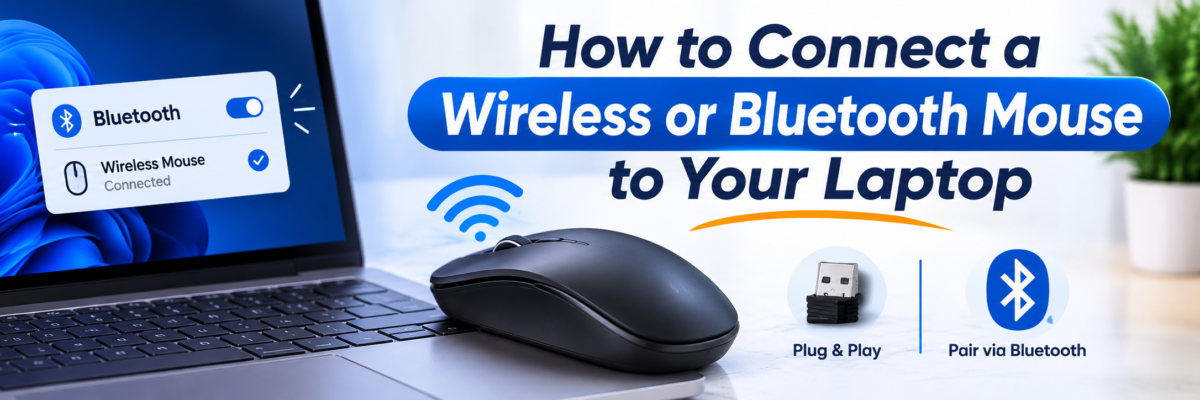
Wondering how to connect a wireless or Bluetooth mouse to your laptop? The setup process depends on whether your mouse uses a dedicated USB receiver or connects directly through Bluetooth. Most compatible wireless mice can be connected in a few straightforward steps without specialized technical knowledge.
A 2.4GHz wireless mouse typically connects through a small USB receiver, sometimes called a dongle. A Bluetooth mouse pairs through your laptop’s Bluetooth settings without requiring a dedicated mouse receiver. Some dual-mode mice support both connection methods.
This guide explains how to connect a wireless mouse to Windows 10, Windows 11 and Mac laptops, how to identify the correct connection method and what to do when the mouse is not detected or the cursor stops responding.
Quick Setup: Which Connection Method Does Your Mouse Use?
USB receiver mouse: Insert the compatible receiver into your laptop, power on the mouse and allow the computer to recognize it.
Bluetooth mouse: Switch on the mouse, activate pairing mode and select it from your laptop’s Bluetooth settings.
Dual-mode mouse: Select the correct Bluetooth or receiver mode before connecting.
USB-C laptop: Check whether your mouse supports Bluetooth or whether its USB receiver requires a compatible adapter.
How to Identify Your Wireless Mouse Connection Type
Before connecting your mouse, check its packaging, underside, battery compartment or user manual to determine which wireless technology it supports.
USB Receiver Wireless Mouse
Usually includes a small USB receiver that plugs into the laptop. The mouse communicates wirelessly with that receiver.
Common examples: Selected Logitech M185 and HP 150 wireless mouse models.
Bluetooth Mouse
Connects directly to compatible Bluetooth-enabled laptops through the operating system’s pairing settings.
Common examples: Microsoft Surface Arc Mouse and selected Logitech Bluetooth models.
Dual-Mode Wireless Mouse
Supports more than one wireless connection method, commonly Bluetooth and a compatible USB receiver.
Common example: Logitech Lift Vertical Ergonomic Mouse.
Important: A wireless mouse is not necessarily a Bluetooth mouse. A receiver-only mouse cannot be paired directly through your laptop’s Bluetooth menu unless the manufacturer specifically supports that connection method.
How to Connect a Wireless Mouse Using a USB Receiver
Many everyday wireless mice use a dedicated 2.4GHz USB receiver. This method is commonly used on compatible Windows laptops and desktop computers.
Check the Mouse Battery
Insert the required AA or AAA battery according to the polarity markings, or make sure the rechargeable mouse has sufficient charge.
Locate the USB Receiver
Check the product packaging, battery compartment or storage slot beneath the mouse for the supplied receiver.
Connect the Receiver
Insert the receiver into a compatible USB port on your laptop. If necessary, use a suitable USB-C adapter or hub.
Switch On the Mouse
Move the power switch to the ON position if the mouse has one. Some models power on automatically when batteries are installed.
Allow Device Detection
Wait for the operating system to recognize the receiver. Many compatible mice work automatically using built-in drivers.
Test the Connection
Move the mouse across a suitable surface and check that the pointer moves. Test the buttons and scroll wheel.
Example: The HP 150 Wireless Mouse (2S9L1AA) uses a wireless USB receiver for compatible computer connections.
Receiver tip: USB receivers are not universally interchangeable. A receiver from another mouse may not work, even when both devices use 2.4GHz wireless technology. Some manufacturer ecosystems support compatible replacement receivers and pairing utilities.
How to Connect a Bluetooth Mouse to Windows 11
Windows 11 supports Bluetooth mouse pairing when the laptop has compatible Bluetooth hardware and drivers.
Windows 11 Bluetooth Mouse Setup
- Make sure your Bluetooth mouse has a working battery or sufficient charge.
- Switch on the mouse.
- Activate Bluetooth pairing mode using the mouse’s pairing button or connection selector, following its manual.
- On your laptop, open Start > Settings > Bluetooth & devices.
- Switch Bluetooth to On.
- Select Add device, then choose Bluetooth.
- Wait for the mouse name to appear in the available devices list.
- Select the mouse and complete any pairing prompts.
- Move the mouse to confirm that the pointer responds.
On some Windows 11 versions, a supported mouse may also appear in a nearby-device notification. The exact interface can vary with Windows updates.
If the mouse does not appear: Confirm that it is in Bluetooth pairing mode rather than USB receiver mode, and check whether it is already connected to another device.
How to Connect a Bluetooth Mouse to Windows 10
The Bluetooth pairing process in Windows 10 is similar to Windows 11, although the Settings menu layout differs.
Windows 10 Bluetooth Mouse Setup
- Insert the mouse battery or ensure it is charged.
- Switch on the Bluetooth mouse.
- Activate pairing mode according to the mouse manufacturer’s instructions.
- Open Start > Settings > Devices.
- Select Bluetooth & other devices.
- Turn Bluetooth on.
- Select Add Bluetooth or other device.
- Choose Bluetooth.
- Select your mouse from the list and complete the pairing process.
- Test pointer movement, clicking and scrolling.
If Bluetooth is missing from Windows Settings, check whether the laptop supports Bluetooth and whether the appropriate adapter driver is installed.
Security note: Windows 10 reached the end of standard support on 14 October 2025. Where possible, use a supported operating system and keep its drivers and security updates current.
How to Connect a Bluetooth Mouse to a MacBook
MacBooks support compatible Bluetooth mice, including selected Apple, Logitech and Microsoft models. Advanced mouse features may depend on macOS support and manufacturer software.
MacBook Bluetooth Mouse Setup
- Make sure the mouse has sufficient battery power.
- Switch on the mouse.
- Activate Bluetooth pairing mode if required.
- Open the Apple menu > System Settings > Bluetooth on recent macOS versions.
- Turn Bluetooth on if it is disabled.
- Wait for your mouse to appear among nearby devices.
- Click Connect beside the mouse name.
- Test the mouse and adjust pointer settings if necessary.
On older macOS versions, Bluetooth settings may appear under System Preferences instead of System Settings.
Connecting an Apple Magic Mouse
An Apple Magic Mouse can be connected to compatible Mac computers through Bluetooth. Depending on the exact model and Mac setup, connecting it using the appropriate charging cable may also assist with initial pairing.
Explore the Apple Magic Mouse Black (MMMQ3LL/A) for the listed product details.
How to Connect a Wireless Mouse to a USB-C Laptop
Some modern laptops, including selected MacBooks and ultrabooks, have USB-C ports but no standard USB-A ports.
If your wireless mouse includes a USB-A receiver, you need a compatible USB-A-to-USB-C adapter or USB-C hub to connect it.
Option: Bluetooth Connection
Use a Bluetooth-capable mouse and pair it directly through the laptop’s Bluetooth settings.
Advantage: No dedicated USB receiver occupies a laptop port.
Option: USB-C Adapter or Hub
Connect the mouse’s USB-A receiver through a compatible USB-C adapter or hub.
Advantage: Allows continued use of a compatible receiver-based mouse.
Before buying an adapter, confirm that it supports USB data connections. For related connectivity accessories, explore UGREEN products and Vention products.
How to Connect a Dual-Mode Wireless Mouse
Some wireless mice support both Bluetooth and a dedicated USB receiver. These models may include a connection selector or device-switching button.
For example, the Logitech Lift Vertical Ergonomic Mouse supports Bluetooth Low Energy and compatible Logi Bolt receiver connectivity.
General Dual-Mode Setup
- Switch on the mouse.
- Select Bluetooth or receiver mode according to the manufacturer’s instructions.
- For Bluetooth, activate pairing mode and add the mouse through your laptop’s Bluetooth settings.
- For receiver mode, connect the compatible receiver and complete any required pairing process.
- Test the mouse before switching between connection modes or devices.
Important: Some multi-device mice support several paired computers, while others support only one connection at a time. Check the exact model’s instructions.
Wireless Mouse Not Connecting? Common Problems and Fixes
If your wireless or Bluetooth mouse does not connect, identify the symptoms before replacing the device. Many connection problems are caused by low battery power, incorrect pairing mode, USB receiver issues or operating system settings.
| Problem | Possible Cause | What to Try |
|---|---|---|
| Mouse Not Detected | Power, receiver or pairing issue | Check battery, power switch and correct connection method |
| Bluetooth Mouse Not Listed | Mouse not in pairing mode | Activate pairing mode and rescan for devices |
| USB Receiver Not Working | USB port, adapter or receiver problem | Try another compatible USB port and verify the receiver |
| Cursor Freezes or Lags | Low battery, interference or tracking surface | Recharge or replace batteries, reduce interference and try a suitable surface |
| Mouse Disconnects | Power management or connection instability | Check power, reconnect and review device settings |
| Bluetooth Missing from Settings | Unsupported, disabled or malfunctioning Bluetooth adapter | Check hardware support, adapter status and drivers |
| Buttons Work but Cursor Does Not Move | Sensor or surface issue | Clean the sensor carefully and try a different surface |
How to Fix a Bluetooth Mouse That Will Not Pair
If your mouse is powered on but does not appear in the Bluetooth device list, follow these checks.
- Check that the mouse supports Bluetooth rather than only a dedicated USB receiver.
- Make sure the mouse battery is charged or has sufficient power.
- Turn the mouse off and back on.
- Activate the manufacturer’s Bluetooth pairing mode.
- Make sure Bluetooth is enabled on the laptop.
- Move the mouse closer to the laptop during pairing.
- If the mouse is already paired but not working, remove it from the laptop’s Bluetooth device list.
- Restart Bluetooth or the laptop if necessary.
- Pair the mouse again through the operating system settings.
- If the problem continues, consult the manufacturer’s troubleshooting instructions.
If the mouse supports multi-device connections, confirm that the correct device channel is selected. It may otherwise reconnect to another previously paired computer.
How to Fix a Wireless USB Mouse That Is Not Working
Receiver-based wireless mice generally do not require Bluetooth pairing through Windows or macOS settings.
If your receiver-based mouse stops responding:
- Check the mouse power switch and battery.
- Remove and reconnect the USB receiver.
- Try a different compatible USB port.
- If using a USB-C hub, check that the hub supports USB data.
- Move the receiver closer to the mouse where practical.
- Reduce potential interference from nearby wireless equipment.
- Test the mouse on another compatible computer if available.
- Use the manufacturer’s supported receiver-pairing utility if the model requires it.
Do not assume that any USB receiver will work. Some Logitech, HP and other wireless mice require a specific compatible receiver or pairing system.
How to Fix a Wireless Mouse That Lags or Freezes
Intermittent cursor movement may result from wireless interference, low battery power, an unsuitable tracking surface or computer performance issues.
Check Battery Power
Replace depleted batteries or recharge the mouse. Low power can cause unstable operation on some models.
Check the Tracking Surface
Try a clean, suitable mouse pad. Some optical sensors do not track reliably on glass, highly reflective or transparent surfaces.
Reduce Wireless Interference
Keep the mouse and receiver within the supported range. Nearby wireless equipment and some USB 3.x devices can affect 2.4GHz receiver performance.
Check Drivers and System Updates
Install relevant operating system updates and manufacturer-supported drivers where necessary. Avoid downloading unknown mouse driver utilities from untrusted websites.
Do Wireless Mice Need Drivers or Special Software?
Many basic USB receiver and Bluetooth mice support standard pointer functions through built-in operating system drivers.
However, advanced features such as programmable buttons, gesture controls, multi-device switching and custom sensitivity profiles may require compatible manufacturer software.
For example, selected Logitech models support additional configuration through Logitech software, while some gaming mice use separate gaming configuration utilities.
Recommendation: Install software only from the manufacturer’s official support channels and confirm that it supports your exact mouse model and operating system.
Which Wireless Mouse Is Suitable for Your Laptop?
If you are still choosing a mouse, match the connection method to your laptop’s available ports and Bluetooth capabilities.
| Laptop Setup | Suitable Connection | What to Check |
|---|---|---|
| Windows Laptop with USB-A | USB receiver or Bluetooth | Available USB port and Bluetooth support |
| USB-C-Only Laptop | Bluetooth or receiver with adapter | Bluetooth compatibility and adapter data support |
| MacBook | Compatible Bluetooth mouse | macOS and gesture compatibility |
| Office Laptop | USB receiver or Bluetooth | Company device policies and supported peripherals |
| Multiple Laptops | Supported multi-device mouse | Number of pairing channels and switching method |
For model recommendations, read our best wireless mice for laptops, office and home use guide.
Frequently Asked Questions About Connecting Wireless Mice
How do I connect a wireless mouse to my laptop?
If the mouse uses a USB receiver, insert the receiver into a compatible USB port and switch on the mouse. If it uses Bluetooth, activate pairing mode and connect it through your laptop’s Bluetooth settings.
Can I connect a wireless mouse without a USB receiver?
Yes, if the mouse supports Bluetooth and your laptop has compatible Bluetooth hardware. Receiver-only mice generally require their compatible receiver.
How do I connect a Bluetooth mouse to Windows 11?
Turn on the mouse, activate pairing mode, open Settings > Bluetooth & devices, select Add device > Bluetooth, and choose the mouse from the available devices.
Why is my Bluetooth mouse not showing on my laptop?
The mouse may not be in pairing mode, may have insufficient battery power or may already be connected to another device. Check Bluetooth settings and the manufacturer’s pairing instructions.
Can I connect a Bluetooth mouse to a MacBook?
Yes, provided the mouse supports compatible Bluetooth connectivity. Open System Settings > Bluetooth, activate mouse pairing mode and select the mouse to connect.
What if my laptop has only USB-C ports?
Use a compatible Bluetooth mouse or connect a USB-A wireless receiver through a suitable USB-C adapter or hub that supports data transfer.
Can I use any USB receiver with my wireless mouse?
No. Wireless receivers are not universally interchangeable. Check whether your mouse supports a compatible replacement receiver or manufacturer pairing system.
Does a wireless mouse need internet access?
No. Normal mouse connectivity through Bluetooth or a USB receiver does not require internet access. Internet may be needed to download certain drivers or configuration software.
Why does my wireless mouse keep disconnecting?
Possible causes include low battery power, wireless interference, USB receiver problems, Bluetooth driver issues or power management settings.
Can I connect one wireless mouse to two laptops?
Some multi-device mice support pairing with multiple laptops and switching between them. Basic receiver-only mice may not provide this feature.
Do I need to install drivers for a wireless mouse?
Many standard mice work with built-in operating system drivers. Advanced features may require compatible manufacturer software.
Where can I buy wireless mouse accessories in Nairobi?
Rapidtech Networks Limited supplies wireless computer mice and related accessories online and from our Nairobi CBD office.
Buy Wireless Mice and Laptop Accessories in Kenya from Rapidtech Networks Limited
Rapidtech Networks Limited supplies wireless mice, Bluetooth mice and related computer accessories for compatible laptops, desktops and office workstations. Compare available models according to their USB receiver requirements, Bluetooth connectivity, battery system and operating system compatibility.
We serve customers in Nairobi, Mombasa, Kisumu, Nakuru, Eldoret, Thika, Kiambu, Nyeri, Meru, Embu, Machakos, Kitale, Kericho, Kisii, Malindi and other towns throughout Kenya.
Our team can assist with wireless mouse selection, Bluetooth compatibility, USB receiver requirements and suitable connectivity accessories for your laptop. Contact Rapidtech Networks Limited with your mouse model and laptop details for product enquiries and quotations.
Explore our computer mice category, call or WhatsApp 0722 555 289, or email sales@rapidtech.co.ke.