
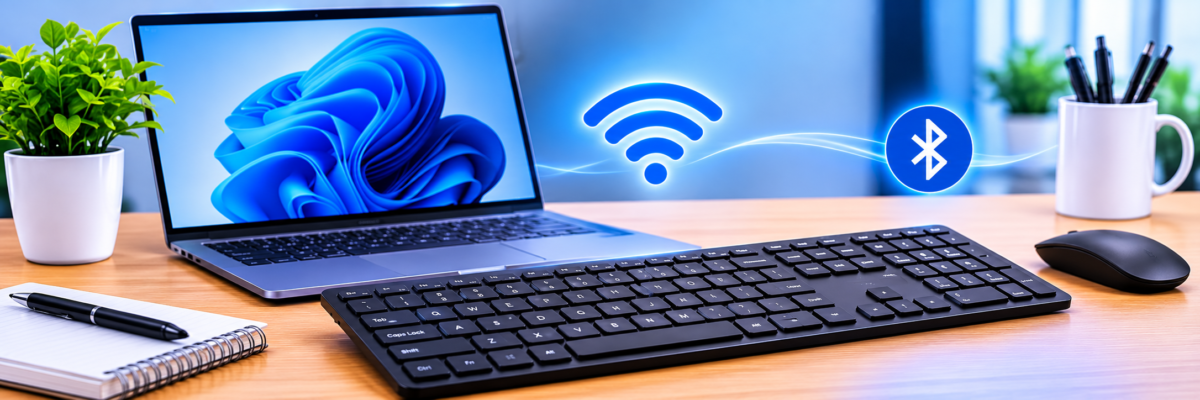
To connect a wireless or Bluetooth keyboard to your laptop, use either the keyboard’s compatible USB wireless receiver or your laptop’s Bluetooth settings. A 2.4GHz wireless keyboard typically connects through a USB receiver, while a Bluetooth keyboard pairs directly with a Bluetooth-enabled laptop without requiring a separate receiver.
Whether you use a Windows 11 laptop, Windows 10 computer or Apple MacBook, the setup process is usually straightforward once you identify the keyboard’s connection type. Some keyboards support both Bluetooth and 2.4GHz wireless modes, allowing you to choose the connection that best suits your computer.
This step-by-step guide explains how to connect a wireless keyboard, pair Bluetooth keyboards, switch between multiple devices and troubleshoot common problems such as missing receivers, failed pairing, incorrect PIN codes and keyboards that stop responding.
Quick Answer: Connect Your Wireless Keyboard
- USB receiver keyboard: Insert batteries or charge the keyboard, connect its compatible USB receiver, switch the keyboard on and select 2.4GHz mode if required.
- Bluetooth keyboard: Switch on the keyboard, activate pairing mode, enable Bluetooth on your laptop and select the keyboard from the available devices.
- Multi-mode keyboard: Choose Bluetooth, 2.4GHz wireless or wired USB mode according to the keyboard’s supported features.
- Pairing code: If your laptop displays a PIN, type it on the external keyboard and press Enter.
Step 1: Identify Your Wireless Keyboard Connection Type
Before connecting a keyboard, check the product packaging, model specifications or connection symbols. Wireless keyboards generally use one or more of the following connection methods.
2.4GHz USB Wireless
Uses a compatible USB receiver, sometimes called a dongle or nano receiver, to communicate with the keyboard.
Suitable for: Office laptops, desktop computers and wireless keyboard-and-mouse combos.
Bluetooth Wireless
Connects through the laptop’s Bluetooth hardware and operating system pairing settings.
Suitable for: Windows laptops, MacBooks and supported tablets.
Multi-Mode Wireless
Supports more than one connection method, such as Bluetooth, 2.4GHz wireless and wired USB-C.
Suitable for: Multi-device workstations and selected mechanical keyboards.
Important: A keyboard that uses only a dedicated 2.4GHz USB receiver cannot automatically be paired through your laptop’s Bluetooth settings. Check whether the manufacturer explicitly supports Bluetooth.
How to Connect a 2.4GHz Wireless Keyboard Using a USB Receiver
Many office wireless keyboards, including selected Logitech, Dell, HP and Vention keyboard-and-mouse combos, use a small USB receiver. This connection method is useful when your laptop does not have Bluetooth or when you prefer a dedicated wireless connection.
Step 1: Check the Keyboard Batteries or Charge
Install the correct AA or AAA batteries according to the manufacturer’s instructions, or charge the keyboard if it has a built-in rechargeable battery. Remove any battery isolation tab supplied with a new keyboard.
Step 2: Locate the USB Wireless Receiver
Check the product packaging, receiver storage compartment or mouse battery compartment if the keyboard was supplied as a combo. Some models store the receiver inside the mouse or keyboard during shipping.
Step 3: Insert the Receiver into Your Laptop
Connect the USB receiver to a compatible laptop USB port. For initial troubleshooting, connect it directly rather than through an unpowered USB hub. If your laptop only has USB-C ports and the receiver uses USB-A, use a compatible USB-C adapter or hub.
Step 4: Switch On the Keyboard
Move the power switch to On. If the keyboard has multiple connection modes, select the 2.4GHz or USB receiver mode using its switch or designated key combination.
Step 5: Wait for Device Detection
Windows or macOS may recognize the receiver automatically. Some keyboard models are pre-paired with their supplied receivers, while others require manufacturer-specific pairing software or setup steps.
Step 6: Test the Keyboard
Open a text editor, document or search field and type a few characters. Test letters, numbers, the spacebar and Enter key to confirm that the keyboard is responding.
USB receiver troubleshooting tip: If the keyboard does not work, try another compatible USB port, check the batteries, confirm the selected wireless mode and verify that the receiver belongs to that keyboard. Not all USB wireless receivers are interchangeable.
How to Connect a Bluetooth Keyboard to a Windows 11 Laptop
Windows 11 supports Bluetooth keyboard pairing through its device settings. Your laptop must have functioning Bluetooth hardware, and the keyboard must support Bluetooth connectivity.
Step 1: Turn On Your Bluetooth Keyboard
Install batteries or charge the keyboard, then switch it on. If it supports multiple connection types, select Bluetooth mode.
Step 2: Activate Bluetooth Pairing Mode
Press the keyboard’s Bluetooth pairing button or the model-specific key combination. Some keyboards use an Easy-Switch key, a dedicated Bluetooth channel or an Fn combination.
On certain models, holding the pairing control for several seconds causes an indicator light to flash. Follow the exact instructions for your keyboard because pairing controls differ between manufacturers.
Step 3: Open Windows 11 Bluetooth Settings
On your laptop, open:
Start > Settings > Bluetooth & devices
Turn Bluetooth on if it is disabled.
Step 4: Add the Bluetooth Keyboard
Select Add device, choose Bluetooth and wait for Windows to discover nearby devices.
When your keyboard appears, select its model name to begin pairing.
Step 5: Enter the Bluetooth Pairing Code
If Windows displays a numeric pairing code, type the code using the external Bluetooth keyboard and press Enter. The characters may not appear on the screen while you type.
Some keyboards pair without requesting a code, depending on the device and supported pairing method.
Step 6: Confirm the Connection
Wait for Windows to confirm the connection, then test the keyboard in a text editor or document.
Windows 11 pairing tip: If your keyboard does not appear, make sure it is still in pairing mode and not actively connected to another device. Restart pairing mode and search again.
How to Connect a Bluetooth Keyboard to a Windows 10 Laptop
The Bluetooth pairing process in Windows 10 is similar to Windows 11, although the settings menu has a different name.
- Switch on the Bluetooth keyboard and activate pairing mode.
- Open Start > Settings > Devices > Bluetooth & other devices.
- Turn Bluetooth on.
- Select Add Bluetooth or other device.
- Choose Bluetooth.
- Select your keyboard when it appears.
- If Windows displays a pairing code, type it on the keyboard and press Enter.
- Wait for confirmation and test the keyboard.
If Bluetooth settings are unavailable, check whether your laptop has Bluetooth hardware and a working driver. Some desktop computers and older laptops require a compatible Bluetooth USB adapter.
How to Connect a Bluetooth Keyboard to a MacBook
Compatible Bluetooth keyboards can be paired with Apple MacBook Air and MacBook Pro computers through macOS settings.
Step 1: Switch On the Keyboard
Ensure the keyboard is charged or has working batteries. Activate Bluetooth pairing mode according to the manufacturer’s instructions.
Step 2: Open macOS Bluetooth Settings
On current macOS versions, open:
Apple Menu > System Settings > Bluetooth
On older macOS versions, the menu may be labelled System Preferences instead of System Settings.
Step 3: Select Your Keyboard
Find the keyboard under available nearby devices and select Connect. Follow any additional pairing instructions displayed by macOS.
Step 4: Confirm Keyboard Layout
If macOS requests keyboard identification, follow the on-screen instructions. Check that the selected input source matches your physical keyboard layout.
Step 5: Test the Keyboard
Open Notes, TextEdit or another application and test typing. Check modifier keys such as Command, Option and Control, particularly when using a Windows-oriented keyboard.
MacBook compatibility tip: A Bluetooth keyboard may connect successfully but still have different shortcut labels or function-key behavior. Check the manufacturer’s macOS compatibility details.
Wireless Keyboard Setup: Windows 11 vs Windows 10 vs MacBook
The following comparison summarizes the most common Bluetooth keyboard pairing paths.
| Laptop System | Bluetooth Settings | Pairing Action | Important Check |
|---|---|---|---|
| Windows 11 | Settings > Bluetooth & devices | Add device > Bluetooth | Bluetooth enabled and keyboard discoverable |
| Windows 10 | Settings > Devices > Bluetooth & other devices | Add Bluetooth or other device | Bluetooth hardware and driver |
| MacBook | System Settings > Bluetooth | Select keyboard > Connect | macOS compatibility and layout |
How to Connect a Logitech Wireless or Bluetooth Keyboard
Logitech keyboards use different connection technologies depending on the model. Some rely on a dedicated USB receiver, while others support Bluetooth, Logi Bolt or Logitech Unifying receiver systems.
Logitech MK345
Uses a wireless receiver-based keyboard-and-mouse connection. Insert the supplied receiver, ensure the devices have power and follow any model-specific setup instructions.
Logitech Wave Keys
Supports wireless connection methods specified for the model. Select a supported connection method and follow Logitech’s pairing instructions.
Receiver compatibility: Logitech Unifying and Logi Bolt are different receiver systems. A keyboard designed for one system should not be assumed compatible with the other.
How to Connect a Wireless Keyboard and Mouse Combo
Wireless keyboard-and-mouse combos are common in offices and home workstations. Many use one receiver for both devices, although the exact setup varies by manufacturer.
- Unpack the keyboard, mouse and supplied receiver.
- Install the required batteries or charge the devices.
- Insert the receiver into a compatible USB port.
- Switch on the keyboard and mouse where applicable.
- Wait for the laptop to recognize the devices.
- Test typing and mouse movement.
For compatible office setups, compare the HP CS10 Wireless Keyboard and Mouse Combo and Vention Wireless Keyboard and Mouse Combo.
How to Connect a Multi-Mode Wireless Mechanical Keyboard
Some mechanical keyboards support Bluetooth, 2.4GHz wireless and USB-C wired connectivity. These models are useful for users who work across several devices or prefer different connection methods for typing and gaming.
Using Bluetooth Mode
Select Bluetooth mode, activate a supported pairing channel and connect the keyboard through your laptop’s Bluetooth settings.
Using 2.4GHz Wireless Mode
Connect the supplied receiver, switch the keyboard to 2.4GHz mode and follow any manufacturer-specific receiver pairing instructions.
Using Wired USB-C Mode
Connect a compatible USB data cable and select wired mode if required. Some USB-C cables provide charging only, so use a cable that supports data transmission.
For a multi-mode mechanical option, explore the Rapoo V500 Pro Wireless Mechanical Gaming Keyboard.
How to Switch a Bluetooth Keyboard Between Two or Three Devices
Selected Bluetooth keyboards support multiple paired devices. This feature allows users to switch between a work laptop, personal computer, tablet or smartphone without repeating the full pairing process each time.
- Turn on the keyboard and select its first supported Bluetooth channel.
- Activate pairing mode and connect it to the first device.
- Select a second supported channel and pair it with another device.
- Repeat for additional supported channels if available.
- Use the keyboard’s Easy-Switch buttons or designated controls to change between paired devices.
Not every Bluetooth keyboard supports multi-device switching. Confirm the number of supported channels and the exact key combinations in the manufacturer’s documentation.
Multi-device tip: Pair each device to its own supported keyboard channel. If the keyboard keeps reconnecting to the wrong computer, check the selected channel and disconnect it from the previous device if necessary.
Wireless or Bluetooth Keyboard Not Connecting? Troubleshooting Guide
If your wireless keyboard is not responding, identify whether the problem involves power, Bluetooth pairing, the USB receiver, operating system settings or the selected connection mode.
Keyboard Not Turning On
Check the power switch, battery orientation, battery condition and charging cable. Remove any battery isolation tab.
Keyboard Not Appearing in Bluetooth
Activate pairing mode again, confirm Bluetooth is enabled and check whether the keyboard is connected to another device.
USB Receiver Not Detected
Try another compatible USB port, check receiver compatibility and confirm the keyboard is in its receiver mode.
Keyboard Disconnects Repeatedly
Check battery power, operating distance, nearby interference and the laptop’s Bluetooth or USB power settings.
Incorrect Characters When Typing
Verify the operating system’s keyboard language and input layout against the physical keyboard arrangement.
Keyboard Connects but Does Not Type
Test another application, restart the keyboard, check its active device channel and reconnect it if necessary.
How to Fix Bluetooth Keyboard Pairing Problems on Windows
If the keyboard appears in Windows Bluetooth settings but cannot connect, the saved pairing record may need to be refreshed.
- Open Windows Bluetooth settings.
- Locate the keyboard in the list of connected or saved devices.
- Select the option to remove or forget the device.
- Turn the keyboard off and back on.
- Activate Bluetooth pairing mode again.
- Add the keyboard as a new Bluetooth device.
- Enter any displayed pairing code using the external keyboard.
- Test the connection.
If the problem continues, restart the laptop, install appropriate system updates and check the Bluetooth adapter in Windows Device Manager. For managed business laptops, consult your IT administrator before changing device drivers or security settings.
What to Do If Your Laptop Has No Bluetooth
Some older laptops and desktop computers may not have integrated Bluetooth hardware. In other cases, Bluetooth may be disabled or its driver may not be functioning correctly.
You can consider a compatible USB Bluetooth adapter for a Bluetooth keyboard, or use a wireless keyboard supplied with its own dedicated USB receiver.
Remember that a dedicated 2.4GHz keyboard receiver is not the same as a general-purpose Bluetooth adapter. Each device must support the selected connection technology.
How to Check Whether Your Wireless Keyboard Is Working
After connecting your keyboard, perform a few basic tests to confirm that it is functioning correctly.
- Open Notepad, TextEdit or another text editor.
- Type letters, numbers and punctuation.
- Test the Enter, Backspace, Shift and Space keys.
- Check the numeric keypad if your keyboard includes one.
- Test function keys and multimedia shortcuts where supported.
- Confirm that the keyboard remains connected during normal use.
- Verify the correct keyboard language and layout.
If only certain keys produce unexpected characters, the issue may involve keyboard layout settings rather than the wireless connection itself.
Best Wireless Keyboards for Laptops and Office Workstations in Kenya
When choosing a keyboard for a laptop, consider the available USB ports, Bluetooth compatibility, typing requirements and whether you need to connect multiple devices.
For home and office productivity, wireless keyboard-and-mouse combos provide a straightforward option. Bluetooth and multi-mode keyboards are useful for compatible laptops, tablets and professional workstations.
Explore our best wireless keyboards in Kenya for laptops, offices and home use comparison to learn about different wireless keyboard models and applications.
If you are choosing keyboards for students, administrative departments or professional offices, read our best computer keyboards for students, offices and business workstations in Kenya guide.
Where to Buy Wireless and Bluetooth Keyboards in Nairobi, Kenya
Rapidtech Networks Limited supplies computer keyboards and accessories for compatible laptops, desktops, offices, home workstations and gaming setups. Browse our computer keyboards in Kenya category to compare available wireless keyboards, Bluetooth models, wired USB keyboards and keyboard-and-mouse combos.
Explore our Logitech product range, HP computer accessories and Dell product range for compatible keyboards and related computer accessories.
For additional options, browse our Rapoo products, Vention computer accessories and Microsoft product range.
For a detailed explanation of wired, wireless, Bluetooth and mechanical keyboard technologies, read our computer keyboard buying guide in Kenya.
Frequently Asked Questions About Connecting Wireless Keyboards
How do I connect a wireless keyboard to my laptop?
For a receiver-based keyboard, connect its compatible USB receiver and switch it on. For a Bluetooth keyboard, activate pairing mode and add it through your laptop’s Bluetooth settings.
Can I connect a wireless keyboard without a USB receiver?
Yes, if the keyboard supports Bluetooth and your laptop has compatible Bluetooth hardware. A receiver-only keyboard generally requires its supported receiver.
How do I put a Bluetooth keyboard into pairing mode?
Use the model’s Bluetooth button, pairing switch or specified key combination. Some keyboards require holding a pairing control until an indicator flashes. Consult the manufacturer’s instructions for the exact procedure.
Why is my Bluetooth keyboard not showing up on my laptop?
The keyboard may not be in pairing mode, may have insufficient battery power or may already be connected to another device. Confirm Bluetooth is enabled and restart the pairing process.
Where do I enter the Bluetooth keyboard pairing PIN?
When your laptop displays a pairing PIN, type it on the external Bluetooth keyboard and press Enter. The code may not appear visibly as you type.
Does a wireless keyboard need internet access?
No. Bluetooth and dedicated 2.4GHz wireless keyboard connections operate locally and do not require internet access for normal typing.
Can I connect a Bluetooth keyboard to Windows 11?
Yes. Open Settings, select Bluetooth & devices, enable Bluetooth and choose Add device. Select the keyboard while it is in pairing mode.
Can I use a Windows wireless keyboard with a MacBook?
Some Windows-oriented wireless keyboards also support macOS. Check the connection requirements and operating system compatibility. Modifier keys and shortcuts may differ.
What should I do if I lose my wireless keyboard receiver?
Check whether the manufacturer supports a compatible replacement receiver and pairing procedure. Some receivers are model-specific and cannot be replaced with an ordinary Bluetooth adapter.
Can one Bluetooth keyboard connect to multiple laptops?
Selected multi-device Bluetooth keyboards support pairing with more than one computer. Use the manufacturer’s device-switching controls to select the active connection.
Why does my wireless keyboard keep disconnecting?
Possible causes include low battery power, wireless interference, distance from the receiver, Bluetooth driver issues or incorrect power settings. Check these factors before replacing the keyboard.
Where can I buy wireless and Bluetooth keyboards in Nairobi?
Rapidtech Networks Limited supplies wireless keyboards, Bluetooth keyboards and related accessories online and from our Nairobi CBD office.
Buy Wireless and Bluetooth Keyboards in Kenya from Rapidtech Networks Limited
Rapidtech Networks Limited supplies wireless keyboards, Bluetooth keyboards, wired USB keyboards, multi-mode mechanical keyboards and keyboard-and-mouse combos for compatible laptops, desktop computers, offices and home workstations. Browse our available computer keyboard range online or contact our Nairobi CBD office for product enquiries, compatibility assistance and quotations.
We serve customers in Nairobi, Mombasa, Kisumu, Nakuru, Eldoret, Thika, Kiambu, Nyeri, Meru, Embu, Machakos, Kitale, Kericho, Kisii, Malindi and other towns throughout Kenya.
Our team can assist with Bluetooth pairing requirements, USB wireless receiver compatibility, keyboard layouts, operating system support and suitable keyboard selection for business workstations. Contact Rapidtech Networks Limited with your laptop model, preferred keyboard and delivery location for assistance.
Call or WhatsApp 0722 555 289, or email sales@rapidtech.co.ke.