
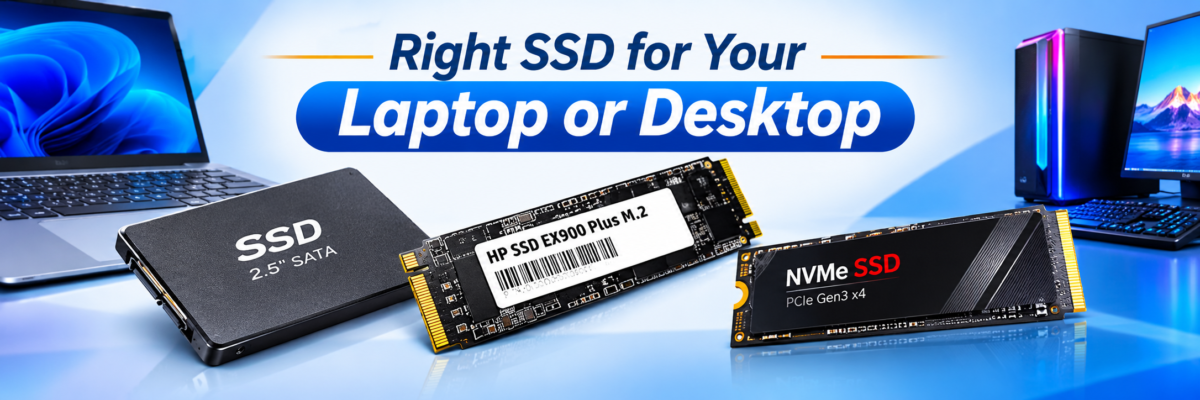
Knowing how to choose the right SSD for your laptop or desktop can help you improve storage performance, increase capacity and avoid buying an incompatible drive. Before comparing prices or advertised speeds, check your computer’s supported form factor, storage interface, PCIe generation and physical clearance.
For many compatible modern computers, an M.2 2280 PCIe 4.0 NVMe SSD with TLC NAND provides a strong balance of performance, endurance and value. However, older laptops may require 2.5-inch SATA SSDs, while compact devices may support shorter M.2 2230 or 2242 drives.
This guide explains SSD compatibility, SATA vs NVMe, M.2 sizes, PCIe generations, TLC vs QLC NAND, DRAM cache, endurance ratings and storage capacities to help you select a suitable upgrade in Kenya.
Quick Recommendation: Which SSD Should You Buy?
Older laptop with a 2.5-inch SATA bay: Choose a compatible 2.5-inch SATA SSD.
Modern laptop with an M.2 NVMe slot: Consider a compatible, power-efficient PCIe NVMe SSD.
Gaming desktop: A suitable 1TB or 2TB PCIe 4.0 NVMe SSD is a practical starting point.
Professional workstation: Consider a higher-capacity NVMe SSD with suitable sustained performance, endurance and cooling.
Before purchasing: Verify the computer manufacturer’s supported drive interface, dimensions and capacity.
Browse our internal SSD drives in Kenya and computer storage accessories to compare available models.
1. Check SSD Compatibility Before Buying
The first step is identifying which type of storage your computer supports. An SSD may offer excellent performance but still be unsuitable if its physical size or electrical interface does not match your laptop or motherboard.
Check the manufacturer’s specifications, service manual or motherboard documentation. Where possible, identify the existing storage drive and available expansion slots.
Common SSD Form Factors Explained
| Form Factor | Approximate Dimensions | Typical Application | Compatibility Check |
|---|---|---|---|
| M.2 2280 | 22 × 80 mm | Desktops and many laptops | Slot interface, length, thickness and heatsink clearance |
| M.2 2230 | 22 × 30 mm | Compact computers and selected handheld devices | Mounting point, interface and supported drive thickness |
| M.2 2242 | 22 × 42 mm | Selected compact laptops and mini-PCs | Supported drive length and interface |
| 2.5-inch SATA | Approximately 70 × 100 mm | Older laptops and compatible desktops | SATA connection, drive bay and thickness |
Understanding M.2 SSD Sizes
The numbers in an M.2 designation indicate the drive’s width and length. For example, M.2 2280 means approximately 22mm wide and 80mm long.
An M.2 2230 drive is shorter than an M.2 2280 drive. A shorter drive may not mount securely in a slot without the correct mounting point or supported adapter.
Single-Sided vs Double-Sided M.2 SSDs
Single-sided SSDs have their principal components on one side of the circuit board. Double-sided models have components on both sides.
Some thin laptops and compact devices have limited clearance and require single-sided drives. Check the service manual before purchasing a higher-capacity or double-sided model.
Compatibility warning: M.2 describes a physical form factor, not a guaranteed storage interface. An M.2 slot may support SATA, PCIe NVMe or both. Confirm the supported protocol before ordering.
2. SATA vs NVMe SSD: Which Interface Is Better?
SATA and NVMe SSDs differ in their communication interfaces and performance potential. SATA SSDs remain useful for compatible older computers, while PCIe NVMe SSDs offer substantially higher potential bandwidth.
| Interface | Approximate High-End Sequential Read Speed | Typical Application |
|---|---|---|
| SATA III SSD | Around 550 MB/s | Older laptop upgrades and compatible secondary storage |
| PCIe 3.0 x4 NVMe | Around 3,500 MB/s | Compatible older NVMe systems and everyday computing |
| PCIe 4.0 x4 NVMe | Around 7,000–7,500 MB/s | Modern gaming, productivity and professional workloads |
| PCIe 5.0 x4 NVMe | Around 14,000–16,000 MB/s on selected models | Supported high-performance workstations and demanding data transfers |
These are approximate upper-end manufacturer-advertised sequential read speeds for selected SSDs, not guaranteed results. Actual performance depends on the drive, motherboard, CPU, PCIe lane configuration, cooling, file sizes and workload.
Is PCIe Gen 4 Backward Compatible with Gen 3?
PCIe generations generally support backward negotiation. A PCIe 4.0 NVMe SSD can commonly operate in a compatible PCIe 3.0 NVMe slot, but its transfer performance is limited by the older interface.
However, electrical compatibility does not guarantee physical fit, firmware support or boot compatibility. Always verify the complete device requirements.
Do You Need PCIe Gen 5 for Everyday Computing?
Not necessarily. PCIe 5.0 SSDs can offer extremely high sequential transfer speeds, but routine web browsing, document editing and general office tasks may show limited improvement compared with a good PCIe 4.0 SSD.
Higher-performance SSDs can also require additional cooling and may cost more. Choose according to actual workload rather than advertised peak speed alone.
For a broader storage comparison, read our SSD vs HDD buying guide in Kenya.
3. Understand M.2 Keying and Motherboard Slot Compatibility
M.2 storage connectors use keyed notches to help distinguish different module configurations. However, the physical notch alone does not establish full compatibility.
M-Key NVMe SSD
Commonly used by PCIe x4 NVMe SSDs. Verify that the computer supports NVMe storage and the required drive dimensions.
B+M-Key SSD
Found on many M.2 SATA drives and some PCIe SSDs. The two notches do not guarantee that a particular motherboard supports the drive’s protocol.
Motherboard Lane Sharing
Some desktop motherboards share bandwidth or connections between M.2 slots, PCIe slots and SATA ports. Installing an SSD may disable certain ports or change lane allocation.
Consult the motherboard manual for slot specifications, supported PCIe generations, SATA port sharing and boot-device compatibility.
4. TLC vs QLC NAND Flash: Which SSD Is Better?
SSD NAND technology influences endurance, cost and sustained write performance. Two drives with similar advertised peak speeds can behave differently during prolonged file transfers.
| Feature | TLC NAND | QLC NAND |
|---|---|---|
| Bits Per Cell | 3 | 4 |
| Typical Endurance | Generally higher | Generally lower at comparable designs and capacities |
| Sustained Write Performance | Often stronger under heavy writes | Can decrease substantially after write cache is exhausted |
| Typical Value | Balanced performance and endurance | Potentially lower cost per gigabyte |
| Recommended Workload | Primary OS, gaming and write-intensive applications | General-purpose and read-heavy bulk storage |
Recommendation: A well-designed TLC SSD is a strong choice for a primary laptop or desktop drive, particularly where sustained writes and endurance matter. A suitable QLC SSD can still perform well for everyday computing and less demanding storage applications.
5. DRAM Cache vs DRAMless SSDs: Does It Matter?
Some SSDs include dedicated DRAM to help manage internal mapping information. Others use DRAMless designs, sometimes supported by Host Memory Buffer (HMB) technology.
SSDs with Dedicated DRAM
Often suited to demanding multitasking, sustained transfers and professional workloads. Performance depends on the complete SSD design.
Examples: Selected Samsung 990 PRO and Crucial T500 models.
DRAMless SSDs with HMB
Compatible NVMe drives can use a small portion of system memory for controller mapping functions. These designs can provide good performance and power efficiency for everyday workloads.
Consider for: Office computers, compatible laptops and budget-conscious upgrades.
HMB support depends on the drive and host system. Also, dedicated DRAM and an SSD’s SLC write cache serve different functions; they should not be treated as interchangeable features.
6. Check SSD Endurance: TBW and Warranty
SSD endurance is commonly expressed as Terabytes Written (TBW). This rating indicates the cumulative amount of data the manufacturer specifies can be written under its endurance conditions.
For example, a 1TB SSD rated at 600 TBW has a specified endurance of 600 terabytes of cumulative writes. It does not mean the drive will automatically fail after reaching that figure.
What Is a Good TBW Rating?
A rating around 600 TBW for a 1TB SSD or 1,200 TBW for a 2TB SSD can be a useful reference when comparing certain TLC performance drives.
However, lower-rated SSDs may still be suitable for everyday computing. Compare actual daily write requirements, warranty terms, NAND technology and the exact model’s manufacturer specifications.
SSD warranties may be limited by time, endurance usage or other conditions. Review the applicable product warranty rather than assuming every SSD has the same coverage.
7. Choose the Right SSD Capacity for Your Laptop or Desktop
Storage capacity should accommodate the operating system, applications, personal files and future growth. Larger SSDs may also offer different performance or endurance characteristics depending on the product family.
256GB – 512GB
Best for: Basic office computers, schoolwork, web browsing and lighter application requirements.
512GB generally provides more flexibility than 256GB for a modern primary system drive.
1TB
Best for: Everyday productivity, programming, general gaming and mixed personal files.
A practical starting point for many modern laptops and desktops.
2TB – 4TB
Best for: Larger gaming libraries, creative projects, professional applications and users storing substantial files locally.
Confirm the computer’s supported capacity and physical clearance.
4TB – 8TB & Higher
Best for: Selected video editing, 3D rendering, media production and demanding workstation applications.
Consider drive cost, sustained performance, cooling and backup requirements.
8. Choosing an SSD for a Laptop
Laptop upgrades require particular attention to space, power consumption and manufacturer compatibility. Many thin laptops have limited cooling and may not accommodate large SSD heatsinks.
Laptop SSD Buying Checklist
- Identify the laptop manufacturer and exact model number.
- Check whether storage is replaceable or soldered to the motherboard.
- Confirm SATA or NVMe interface support.
- Verify M.2 length or 2.5-inch drive bay dimensions.
- Check single-sided or double-sided drive clearance.
- Choose a power-efficient SSD where battery life and heat matter.
- Avoid thick factory heatsinks unless the laptop specifically supports them.
- Confirm the supported capacity and firmware requirements.
- Back up important data before opening the laptop.
For model comparisons, read our best internal SSDs in Kenya for laptop and desktop upgrades.
9. Choosing an SSD for a Desktop Computer
Desktop computers may offer more storage expansion options, including multiple M.2 slots and SATA drive bays. However, motherboard specifications determine which interfaces and PCIe generations are supported.
Check Motherboard Slots
Confirm M.2 interface, supported length, PCIe generation and whether installing a drive affects other SATA or PCIe connections.
Plan SSD Cooling
Use compatible motherboard M.2 thermal shields or suitable heatsinks where recommended. High-performance SSDs may throttle under sustained workloads if cooling is inadequate.
Consider Multiple Drives
A fast NVMe SSD can hold the operating system and active applications, while a second compatible SSD or HDD provides additional storage.
10. Best SSD Type for Different Computer Applications
| Application | Suggested SSD Type | Buying Priority |
|---|---|---|
| Older Laptop Upgrade | Compatible SATA SSD | Fit, interface and capacity |
| Office Productivity | Compatible SATA or NVMe SSD | Value, reliability and responsiveness |
| Modern Gaming PC | PCIe 4.0 NVMe SSD where supported | Capacity, performance and cooling |
| Programming & Development | Suitable NVMe SSD | Random I/O, capacity and sustained performance |
| Video Editing & 3D Work | High-performance NVMe SSD | Sustained transfers, endurance, capacity and cooling |
| Secondary File Storage | Compatible SATA or NVMe SSD | Capacity and cost per gigabyte |
11. Should You Choose an Internal or External SSD?
An internal SSD connects directly to a compatible computer’s internal storage interface. An external SSD connects through USB or another supported external connection and is convenient for portable storage.
Choose an internal SSD when upgrading the computer’s operating system or primary application storage. Choose an external SSD when you need portable file transfers or additional storage without replacing an internal drive.
Read our internal SSD vs external SSD comparison for more information.
12. How to Upgrade Your Laptop or Desktop to an SSD
Before upgrading, determine whether you will perform a clean operating system installation or migrate the existing installation to the new drive.
Step 1: Verify Compatibility
Confirm the supported form factor, interface, capacity and installation requirements.
Step 2: Back Up Your Data
Create an independent backup of important files before changing storage hardware or migrating an operating system.
Step 3: Prepare Migration
Use compatible cloning software or prepare installation media. Confirm the destination drive has sufficient capacity.
Step 4: Install the SSD
Follow the device manufacturer’s service instructions, including power isolation, electrostatic precautions and correct mounting.
Step 5: Configure the System
Confirm the SSD is detected, select the correct boot drive and complete any required partition or operating system setup.
Step 6: Verify Operation
Check storage capacity, system stability, drive health and important files before relying on the upgraded system.
Important: Opening a computer or replacing internal storage may affect warranty conditions on some devices. Consult the manufacturer or a qualified technician when necessary. Keep a separate backup until the upgrade has been verified.
13. SSD Brands to Consider in Kenya
Different SSD manufacturers offer models for everyday computing, gaming, business use and professional workstations. Compare the exact model’s interface, NAND technology, endurance and warranty rather than relying on the brand alone.
Samsung SSDs
Compare selected Samsung SATA and NVMe drives for compatible laptops, desktops and professional applications.
Western Digital SSDs
Compare suitable WD Blue and WD_BLACK SSD families based on compatibility, capacity and intended workload.
Lexar SSDs
Compare selected Lexar SATA and NVMe storage products for compatible computer upgrades.
14. SSD Prices in Kenya: What Determines the Cost?
SSD prices in Kenya vary according to capacity, manufacturer, NAND technology, controller, interface, performance, endurance and warranty conditions.
A 1TB SATA SSD, entry-level NVMe SSD and high-performance PCIe 4.0 SSD may have different prices even though they offer the same advertised capacity. Similarly, PCIe 5.0 drives can cost more because of their performance and cooling requirements.
Check current product listings or request a quotation for the exact SSD model. Confirm applicable VAT and delivery charges before checkout.
15. Common SSD Buying Mistakes to Avoid
- Buying an NVMe SSD for an M.2 SATA-only slot.
- Choosing an M.2 drive with an unsupported length.
- Ignoring laptop thickness and heatsink clearance.
- Assuming every PCIe 4.0 SSD reaches the same speed.
- Comparing only advertised sequential read speeds.
- Overlooking NAND technology and sustained write performance.
- Ignoring TBW, warranty conditions and intended workload.
- Purchasing insufficient capacity for applications and future files.
- Failing to check motherboard lane sharing.
- Replacing a drive without first creating a verified backup.
SSD Buying Checklist Before You Order
Before purchasing an SSD for your laptop or desktop, confirm the following:
- Computer model: Exact laptop or motherboard identification.
- Form factor: 2.5-inch SATA, M.2 2280, 2242, 2230 or another supported size.
- Interface: SATA or PCIe NVMe.
- PCIe generation: Supported link speed and lane configuration.
- Physical clearance: Single-sided, double-sided and heatsink compatibility.
- Capacity: Enough space for operating system, applications and future growth.
- NAND technology: TLC or QLC according to workload and budget.
- Performance: Sequential and random I/O, sustained write behavior and thermal requirements.
- Endurance: TBW rating and manufacturer warranty conditions.
- Installation: Data backup, migration and mounting requirements.
Related SSD and Computer Storage Buying Guides
Best Internal SSDs in Kenya
Compare suitable internal SSD options for laptop and desktop upgrades.
Read our internal SSD comparison
Where to Buy SSDs and Hard Drives in Nairobi
Learn where to shop for internal SSDs, external SSDs and hard drives in Kenya.
Read our SSD and hard drive shopping guide
Complete Computer Storage Accessories Buying Guide
Understand SSDs, HDDs, USB flash drives, memory cards and related storage equipment.
Read our complete storage buying guide
NAS Storage and Surveillance Hard Drives in Kenya
Compare NAS equipment, NAS-rated hard drives and surveillance HDDs for business and CCTV applications.
Frequently Asked Questions About Choosing an SSD
How do I know which SSD is compatible with my laptop?
Check the laptop manufacturer’s service manual for the supported form factor, interface, drive length, thickness and capacity. Confirm whether the storage is replaceable.
Is NVMe better than SATA SSD?
NVMe SSDs generally offer higher potential transfer performance. SATA SSDs remain useful for compatible older computers and cost-conscious upgrades.
Can I install a PCIe 4.0 SSD in a PCIe 3.0 laptop?
Often yes, if the laptop supports the SSD’s physical form factor and NVMe interface. Performance will be limited by the compatible PCIe connection.
What is the difference between M.2 2280 and M.2 2230?
Both are approximately 22mm wide, but M.2 2280 drives are 80mm long while M.2 2230 drives are 30mm long. Compatibility depends on the device’s supported mounting positions and interface.
Is a 1TB SSD enough for a laptop?
A 1TB SSD is sufficient for many everyday computing, office and mixed-use requirements. Users with large media projects or gaming libraries may need additional capacity.
Should I buy TLC or QLC SSD?
TLC is often preferred for demanding primary-drive workloads and sustained writes. QLC can provide good value for general-purpose and read-heavy storage.
Do I need an SSD with DRAM?
Not necessarily. DRAM-equipped SSDs can offer advantages in certain workloads, while well-designed DRAMless NVMe drives can perform well for everyday computing.
What does 600 TBW mean on an SSD?
It indicates a manufacturer-specified endurance rating of 600 terabytes of cumulative writes under applicable conditions. It is not an exact prediction of failure.
Do laptops need SSD heatsinks?
Most laptops have specific thermal and clearance designs. Avoid adding a thick heatsink unless the manufacturer supports it. Follow the laptop’s original thermal arrangement.
Can I replace my laptop HDD with an SSD?
Many laptops with a compatible 2.5-inch SATA hard drive can accept a 2.5-inch SATA SSD. Check the drive bay and service instructions before purchasing.
Will upgrading to an SSD make my computer faster?
Replacing a mechanical system drive with an SSD can significantly improve storage responsiveness, boot times and application loading. Results depend on the computer and workload.
Where can I buy internal SSDs in Nairobi?
Rapidtech Networks Limited supplies internal SSD drives and computer storage accessories online and from our Nairobi CBD office.
Do you deliver SSDs outside Nairobi?
Rapidtech Networks Limited offers delivery arrangements across Kenya, subject to order confirmation, product availability and applicable charges.
Buy Internal SSD Drives in Kenya from Rapidtech Networks Limited
Rapidtech Networks Limited supplies internal SATA and NVMe SSDs, external SSDs and computer storage accessories for compatible laptops, desktops, gaming systems and workstations. Compare available Samsung, Western Digital, Lexar and other SSD products by capacity, interface, performance and manufacturer specifications before purchasing.
We serve customers in Nairobi, Mombasa, Kisumu, Nakuru, Eldoret, Thika, Kiambu, Nyeri, Meru, Embu, Machakos, Kitale, Kericho, Kisii, Malindi and other towns throughout Kenya.
Our team can assist with SSD compatibility, M.2 form factors, SATA and NVMe interfaces, storage capacity selection and suitable products for laptop or desktop upgrades. Contact Rapidtech Networks Limited with your computer model and storage requirements for product enquiries and quotations.
Shop our internal SSD drives in Kenya, call or WhatsApp 0722 555 289, or email sales@rapidtech.co.ke.
[…] our guide to choosing the right SSD for your laptop or desktop for information on SATA, NVMe, PCIe generations and […]